
20 October 2026
How Long Do Business Computers Last, and When to Replace Them
By Tanya Wetson-Catt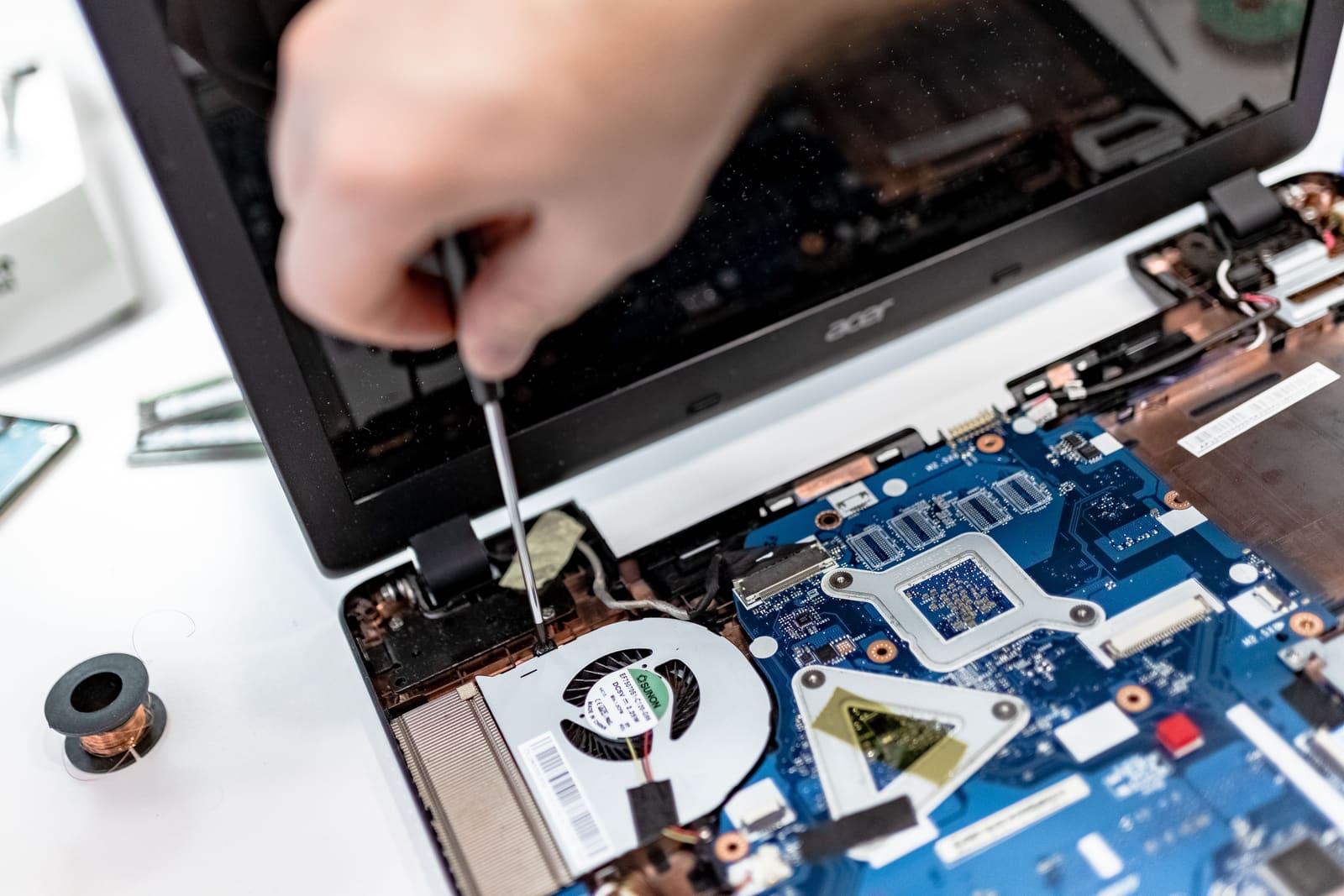
Photo by IT services EU on Pexels
Most business computers don't die suddenly. They fade. A laptop still opens email and documents fine, but it takes longer to start each morning, struggles the moment a video call and a spreadsheet are open at once, and the battery doesn't make it to lunchtime any more. None of that looks urgent on any single day, which is exactly why it tends to get ignored until it isn't.
Three to five years is a reasonable range for planning around, but it's a starting point for a proper look, not a countdown timer. Some computers need replacing well before three years because they can no longer be secured. Others, doing lighter work, are still perfectly fine well past five. Age tells you when to check. It shouldn't be the thing that makes the decision on its own.
Three Years Is Where the Review Should Start
Both major PC manufacturers plan around a similar window. Dell's own total cost of ownership analysis puts three years as the optimal refresh point for most business laptops and desktops, stretching to three to four years depending on the role, since support and repair costs climb quickly once a device passes that point. Intel runs a comparable programme internally, letting staff using devices older than three years choose a replacement suited to their actual workload rather than a like-for-like swap.
Neither of those is a rule that says a three-year-old laptop must go. It's a sensible point to sit down and check a handful of things properly: whether it can still be kept secure, how it's actually performing for the person using it, what the warranty situation looks like, and how much it's cost in repairs and support calls so far. If it comes through that review clean, note a date to look again next year rather than replacing it out of caution. If it's already causing problems, put it on the list for the next planned round of purchases.
Reviewing on a schedule, rather than reacting machine by machine as things go wrong, is what keeps a handful of laptops from all needing replacing in the same expensive month.
Security Support Comes Before Speed or Battery Life
Before looking at how fast a computer feels, check whether it can still run an operating system that receives security updates. This is the one factor that should override everything else on this list.
Once an operating system reaches the end of its support life, newly discovered flaws in it simply don't get fixed. Security software running on top can catch some of what that leaves exposed, but it can't patch a hole in the operating system underneath it. The NCSC is direct about this: "the only fully effective way to mitigate this risk is to stop using the obsolete product." There's no permanent workaround, only ways to buy a bit more time.
If your business holds, or is working towards, Cyber Essentials certification, this stops being a background risk and becomes an immediate practical problem. A single device running software past its end of support is enough to fail the assessment outright, regardless of how well everything else is configured. We've written in more detail about exactly this situation for businesses still running Windows 10 past its end of support, including the options for dealing with it.
Ask whoever manages your IT to check the support status of every operating system at least once a year, and to confirm ahead of time that your machines will meet the requirements of whatever comes next, rather than finding out the week support ends.
Match the Machine to the Job
Somebody who spends the day in email, documents and a browser can often get along fine on a computer that would frustrate a colleague working with large spreadsheets, design files, video editing or several demanding applications open together. Age isn't really the variable here. The work is.
Watch the computer while someone's actually using it for their normal day, not idling on the desktop. Programs that take too long to open, video calls that stutter or drop, or having to close one application before another will run properly are all signs worth acting on. Ask the person using it how often it actually slows them down. Once a week is a different problem to something that happens all day, every day.
Software requirements shift over time too, sometimes faster than the hardware does. Accounting platforms, security tools and industry-specific software can quietly stop supporting older processors or operating systems, even while the programme still opens and appears to work. Before renewing an important piece of software or moving to a new platform, check its hardware requirements against your current fleet, so you know which machines need attention before the change forces the issue.
Don't Assume a Slow Computer Is an Old One
Poor performance and old age aren't the same problem, and treating them as one leads to replacing machines that didn't actually need it.
A drive that's nearly full, too little memory for what's being asked of it, a pile of programs launching automatically at startup, malware, overheating, or a corrupted operating system installation can all produce exactly the same symptoms as genuine age: a laptop that's slow to start, slow to respond, and generally frustrating to use. A failing storage drive can look similar too, and is worth catching quickly before it takes files with it.
Get the actual cause diagnosed before signing off on a replacement. Often a clean-up, a repair, more memory or a new drive brings the computer straight back to normal, at a fraction of the cost. That said, still weigh the computer's age and remaining support life against the price of that fix. An upgrade makes little sense on a machine that's about to lose operating system support anyway, or where several other components are already on their way out.
Weigh Repeated Repairs Against What They're Actually Costing You
One repair on its own rarely justifies replacing a computer. A pattern of them changes the maths considerably.
Unexpected shutdowns, failed updates, a charging port that's started playing up, storage errors, screen problems and repeated operating-system repairs can all add up to a machine that's unreliable even though no single fault looks serious in isolation. Add up the actual cost across support tickets, repair invoices and the time someone lost waiting on it or working around it, rather than judging each incident on its own. A repair that looks cheaper than a new machine on paper can turn out to be poor value if another fault follows a few weeks later.
How much this matters also depends on the role. A failed laptop is a nuisance for someone at a desk with a spare machine nearby. It's a much bigger problem for someone who travels, meets clients, or handles payments and can't simply borrow a colleague's computer for the afternoon. Keeping a spare, properly maintained and kept up to date rather than left switched off in a cupboard, is a cheap way to soften that risk.
Warranty, Spare Parts and a Tired Battery
A warranty running out doesn't automatically mean a computer needs replacing, but it does shift repair costs, and often the wait for a repair, onto the business rather than the manufacturer. Review the warranty before it lapses, check what an extension would cost and cover, and weigh that against the age and value of the machine it's protecting.
Manufacturers also only guarantee spare parts and repairs for a limited window after a model is discontinued, and that window varies by manufacturer and product line, so it's worth checking the actual policy for the specific machine rather than assuming a general rule for the brand. This matters more if the business doesn't keep spare devices on hand, since even a straightforward repair can mean several days without a working machine while a part is ordered in.
Laptop batteries wear out well before most of the rest of the machine does. One that used to last a full day and now needs charging by mid-afternoon might be completely fine for someone working at a desk, but it can make the laptop unworkable for someone who's out of the office regularly. A battery swap is often worth doing on a laptop that's otherwise reliable and still comfortably within its security support window. Stop using any laptop immediately if the battery looks swollen, feels unusually hot, or has started to warp the case, and have it looked at by someone with the right tools before it goes anywhere near a bag or a desk again.
Upgrade, Hand It Down, or Retire It
Some slow computers are genuinely one component away from being fine again. Others are built in a way that makes upgrading them either impractical or not worth the labour involved.
An upgrade is worth doing when a single part is clearly the bottleneck and the machine still has years of security and software support ahead of it, extra memory for someone who needs several large programs open at once, for instance. Add up the full cost properly, parts, the technician's time, backing up and restoring data, testing everything still works, and compare that total against buying new outright, which usually comes with a fresh warranty and is generally easier for an IT provider to support and monitor going forward.
A computer that's no longer right for one employee's workload can still be entirely suitable for someone doing lighter work, provided it's still supported and reliable. Before it moves to a new user, wipe the previous employee's accounts and files properly, set it up fresh for whoever's getting it, and treat that handover the same way you would a brand new machine, including giving the new user a standard account rather than admin rights. A computer that's already unsupported or causing regular problems shouldn't be handed down at all. Reassigning it just delays the same replacement decision to someone else's desk.
Build a Simple Replacement Schedule
Keep a straightforward record for each computer: purchase date, model, who's using it, when the warranty runs out, which operating system it's on, and a rough date to check on it again. When a machine hits three years old, look at its security support, how well it still handles the software it needs to run, how much it's needed fixing, its battery and warranty position, and whether the person using it still needs what it offers.
From there, put a planned replacement year against it, and revisit that date if the employee's role changes, the software they rely on gets heavier, or an operating system's support timetable moves. Spreading purchases across a few budget periods, rather than replacing a cluster of machines in the same year, is considerably easier to plan for. It also gives whoever manages your IT time to actually order, configure and test new equipment properly instead of rushing it. This is exactly the kind of line item that tends to get missed when a small business puts its yearly IT budget together, since it's easy to budget for the sticker price of a laptop and forget the setup work and spares that go around it.
Standardising on a small number of approved models can simplify a lot of this too, shared chargers and docks, and consistent security settings across the fleet, though different roles will still genuinely need different specifications. A general office laptop was never going to suit someone doing video editing or specialist technical work, whatever the model list says.
Before the old machine actually leaves someone's desk, confirm the replacement has everything set up and working, email, files, printers, shared folders, multi-factor authentication and any specialist software, before the employee starts relying on it day to day. Once the switch is done, take the old device off device management, security monitoring, backups and any trusted-device lists, and reassign or cancel whatever licences were tied to it. A short overlap while someone confirms everything's working is fine. Leaving the old machine connected and unmanaged for months afterwards just creates another device somebody has to remember to secure.
Wipe It Properly Before It Leaves the Business
Deleting files, or removing a user's account, doesn't reliably remove everything a computer has ever held. Storage needs to be properly sanitised before a device is sold, donated, recycled, returned or scrapped, and the correct method depends on the type of storage, whether it's encrypted, and how sensitive the information on it was.
The NCSC's guidance on decommissioning IT assets is clear that the original device, including everything on it, should be properly sanitised once any data worth keeping has been backed up elsewhere, and that where an external party handles this for you, it's worth getting confirmation or a certificate that it's actually been done. Since these machines often hold personal data about staff or clients, getting this step right isn't just tidy housekeeping, it's part of the basic security expectation UK GDPR places on any business handling that kind of information.
Keep a short disposal record for each device: asset number, serial number, the date it was disposed of, and the method used to clear it. It takes a couple of minutes and it's the difference between being able to answer confidently if anyone ever asks what happened to a particular machine, and not being able to.
Six Questions Worth Asking About Any Business Computer
- Can it run an operating system that's still receiving security updates?
- Does it support the software the person using it actually needs?
- Does it get through a normal working day without regular delays or hiccups?
- Has it needed repeated repairs or support recently?
- Is it still under a suitable warranty, or are parts still easy to get hold of?
- Would an upgrade realistically buy it enough useful life to justify the cost?
Fail on security or software support and the decision's already made. For performance or reliability concerns, it's simply a case of comparing the cost of fixing the problem against the cost of living with it for another year.
None of this needs to be a big annual project. A short, honest look at each machine on a fixed schedule catches most of what matters long before it turns into a genuine problem, and it's exactly the kind of thing that gets easier once it's a habit rather than something that only happens when a laptop finally gives up. If you'd rather hand that whole process to someone else, get in touch with our team and we'll take it from there.
Frequently Asked Questions
How many years should a business laptop actually last?
Three to five years is a sensible planning range for most office laptops. Replace one sooner if it becomes unreliable, can't be kept secure, or no longer suits what the person using it needs to do. A well-supported laptop doing lighter work can comfortably run beyond five years.
Should every computer in the business be replaced at the same age?
No. Review each one based on its condition and how it's actually used. A laptop that goes between client sites every day is under more pressure than a desktop used occasionally for basic admin, and the two shouldn't be on the same replacement clock.
Is a slow computer always ready to be replaced?
Not necessarily. A full drive, too little memory, malware, overheating or a corrupted operating system can all cause the same symptoms as genuine age. Get the actual cause checked before deciding whether to repair, upgrade or replace it.
Does a computer need replacing the moment its warranty ends?
Not automatically. Review its condition, whether it's still properly supported, its repair history, how important it is to the person relying on it, and whether a spare machine is available. The warranty running out is simply a sensible moment to do that review.
Can an old computer be kept around as a spare?
Yes, as long as it's still supported, reliable, kept up to date and properly managed like any other device on the network. Spares left switched off and forgotten about tend to be badly out of date by the time anyone actually needs them.
Can a business sell or donate an old computer?
Yes, but only once all business data has been properly removed using a suitable sanitisation method, not just deleted. Keep a short record of how and when each device was disposed of, in case anyone ever needs to check.
Written by
Tanya Wetson-CattTanya is a co-founder of Atema, running much of what keeps the business itself moving, marketing, finance and admin, while keeping a close eye on the practical, jargon-free advice that goes out to clients.