
9 October 2026
Why Guest Wi-Fi Should Be Separate From Your Business Network
By Jack Wetson-Catt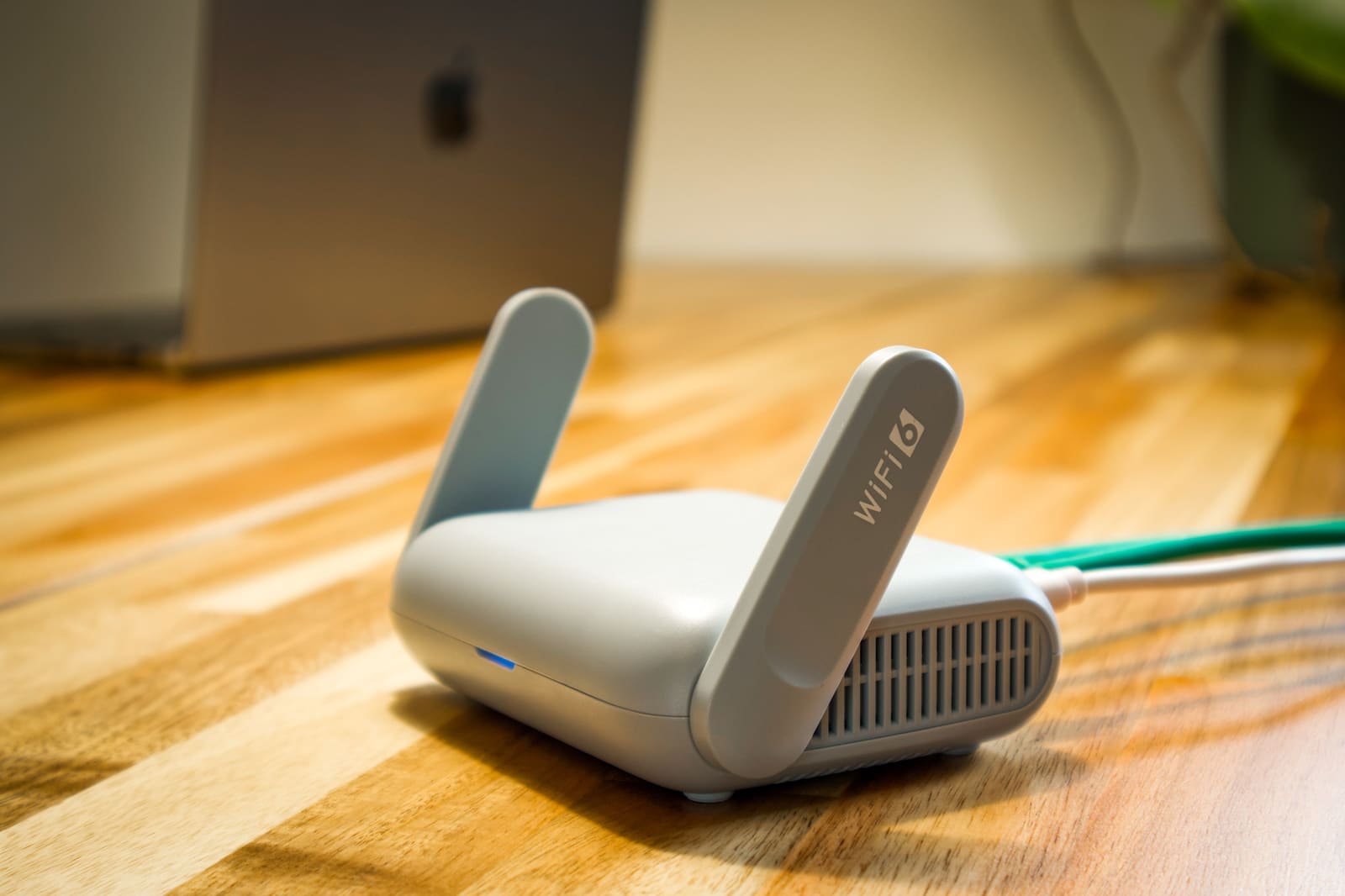
Photo by Pascal on Pexels
When a client visits your office, or a contractor turns up to fix something, handing over the Wi-Fi password is second nature. What's less automatic is checking what that password actually gets them into.
For a solicitor's practice, an accountancy firm, or any UK small business that holds client data, that's not a small detail. A visitor's phone connecting to the wrong network can end up within reach of the same file storage, the same printers, and the same devices your own team relies on every day, without anyone doing anything obviously wrong. They didn't hack in. They just joined the Wi-Fi they were told to join.
A Second Network Name Doesn't Mean a Second Network
Most offices already have something that looks right: a "Business" network and a "Guest" network, each with its own name and its own password. That's a reasonable start, but the two names on their own prove nothing. What matters is what happens behind them, in the router, switches and firewall, not what a visitor sees in their phone's Wi-Fi list.
Two networks that share the same underlying settings can still let a guest device see and reach everything a staff laptop can. The name is cosmetic. The separation, if it exists at all, is configured somewhere else entirely.
What Actually Has to Be Configured
Proper separation usually comes down to three settings, and it's worth asking your IT provider to confirm all three are actually in place, not just the first one:
A guest SSID needs to sit on its own VLAN, a virtual network carved out of the same physical equipment. Firewall rules then have to explicitly block that VLAN from reaching your internal network ranges, your file servers, your printers and your management interfaces. Many small-business routers and access points can do this out of the box, but it usually has to be turned on deliberately. A guest Wi-Fi toggle that just changes the network's name and password, without any of this underneath it, isn't doing the job.
It's also worth checking whether guest devices can see each other. This is a separate setting, often called client isolation, and it stops one visitor's laptop from reaching another visitor's device on the same guest network. Without it, a compromised phone belonging to one guest could potentially reach a laptop belonging to a completely different visitor sitting in the same waiting room an hour later.
Why It's Worth Getting Right
You don't have to fully trust a device to let someone use your Wi-Fi, but you do need to assume you know nothing about it. You can't see whether it's had its security updates, whether it's already infected with something, or who else has used it before it walked through your door.
None of that guarantees they'd be able to reach your systems even on a shared network. Your own account permissions and device security still apply. But an unsegmented network removes a barrier that costs nothing to keep in place, and gives a compromised device more to look for once it's connected: an exposed printer's management page, a network share with weak permissions, a router login screen still on its default password.
The NCSC's guidance on preventing lateral movement puts the underlying principle plainly: "systems and data that do not need to communicate or interact with each other should be separated into different network segments, and only allow users to access a segment where needed." A visitor's phone and your accounts software have no reason to be on speaking terms. Properly configured guest Wi-Fi is one of the simplest places to put that principle into practice, because unlike segmenting a server room or a finance system, it rarely needs anyone in the business to change how they work.
Personal Phones, Company Laptops, and Everything in Between
Guest Wi-Fi isn't only for visitors. It's also the right place for a personal phone that only needs an internet connection and nothing else, whether that belongs to a customer in reception or a staff member checking their own messages on a break.
The line to draw is about what a device needs to reach, not who owns it. A company laptop that needs access to shared drives or line-of-business software belongs on the business network. A personal phone that just needs to browse and send messages doesn't, and putting it there anyway only adds an unmanaged device to a network it never needed to be on. If staff genuinely need their own phones or laptops for work, that's really a bring-your-own-device policy question, covering what security software or checks a personal device needs before it gets business-level access, not something guest Wi-Fi should be quietly asked to solve.
The same logic covers smart TVs, meeting room displays, and any internet-connected gadget that has no business reason to talk to your computers. A smart TV in reception doesn't need to see your accounts package any more than a visitor's phone does.
A Password Isn't a Substitute for Separation
Keep the guest password different from the one your own staff use, and change it more often than you'd think to. A password that's been handed out at a busy trade event, given to a run of contractors over several months, or shared with someone whose engagement with the business has ended, is a password worth retiring.
That last point matters more than it might seem. Rushed offboarding is very often traced back to how loosely access was handed out in the first place, and a guest Wi-Fi password nobody remembers giving out is exactly that kind of loose end. It costs nothing to change it once a contractor's work is finished.
Five Things Worth Checking
- Confirm which devices sit on which network. Company-owned equipment that needs access to internal systems belongs on the business network. Everything else, visitors, personal phones, smart devices, belongs on the guest network.
- Check that guest traffic is actually blocked from reaching internal systems, not just placed on a differently named network. Ask your IT provider to show you the firewall rule, not just tell you it exists.
- Turn on client isolation if your equipment supports it, so guest devices can't see or reach one another.
- Use WPA2 at a minimum, and WPA3 where your equipment supports it, with a guest password built the way the NCSC recommends for any password, three random words that mean nothing to do with your business, rather than something guessable or reused from elsewhere.
- Keep router and access point firmware current, and replace the administrator login's default credentials the day it's installed, not at some point afterwards.
A quicker way to find out whether all of this is actually working, rather than just configured correctly on paper, is a network-scope penetration test, which specifically checks whether a device on one part of your network can reach somewhere it shouldn't. It's a more direct answer than trying to read your own firewall rules and hoping you've interpreted them correctly.
You Probably Don't Need a Second Internet Connection
Most small businesses can run guest and business Wi-Fi over a single internet connection, provided the router or firewall handling it is actually capable of the separation described above, not every budget device is. It's also worth setting a bandwidth limit on the guest network, so a visitor streaming video in the waiting room doesn't slow down everyone else's video calls.
If your business genuinely can't function without internet access even for a short outage, that's a real conversation to have, but it's a business continuity question in its own right, not something to bundle into a guest Wi-Fi decision. Either way, decent router and firewall equipment capable of proper segmentation is worth budgeting for as part of your network line item rather than treating it as an afterthought once something's already gone wrong.
Frequently Asked Questions
Is a separate guest Wi-Fi password enough on its own?
No. The password controls who can join the guest network. Whether that network can actually reach your internal systems is a separate setting, configured in the router, switches and firewall, and it's worth confirming rather than assuming.
Can guest and business Wi-Fi share one internet connection?
Yes. They can run over the same internet connection while staying properly separated inside your network equipment. What matters is the configuration behind the scenes, not how many connections you're paying for.
Should staff put their own phones on the guest network?
If a personal phone only needs internet access, the guest network is usually the sensible place for it. A device that needs to reach company files or systems should follow whatever access rules the business has for personal devices generally.
Should visitors be able to use the office printer?
Not by default. If visitor printing is genuinely needed, it's worth setting up a specific, controlled way to allow it rather than opening up printer access to the whole guest network.
Does separating guest Wi-Fi stop cyberattacks on its own?
No single setting does. It removes one route into your systems and limits what a compromised guest device could reach, but it sits alongside the basics that still matter regardless: secure passwords, multi-factor authentication, kept-up-to-date software, and proper backups. If you're not sure whether your own guest Wi-Fi is actually doing what its name suggests, get in touch and we'll take a look at what's really configured behind it.
Written by
Jack Wetson-CattJack co-founded Atema in 2017 and leads the team day to day, bringing years of IT experience across telecoms, finance and legal to how Atema supports its own clients.